| Live Map |
|
LIVE MAP APP
Canada.uk.com's Web App (v. 1.0),
"Original" - This handy
Live Map Web App
is a geo-locator and a self guided walking tour phone app
(designed by locals). It overlays your GPS location on a
planned tourist route so you can see your position on the
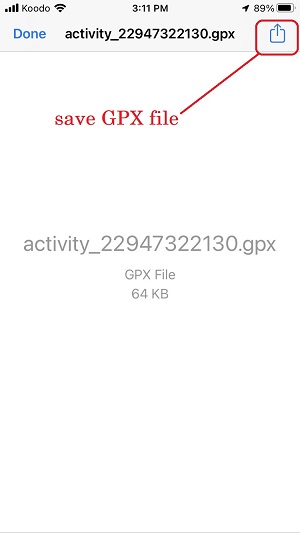
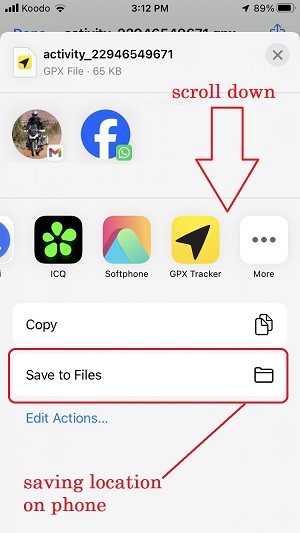
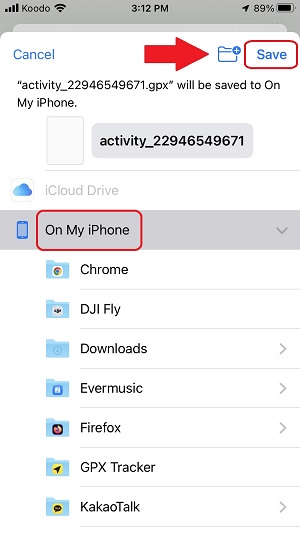
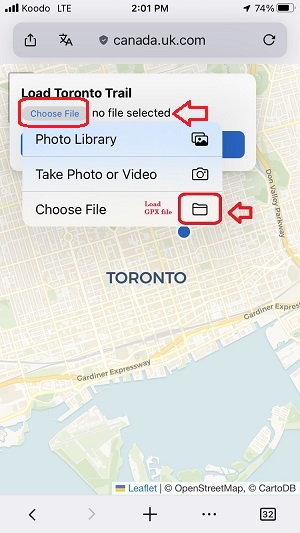
map! Use it by downloading the planned tour route (.gpx
file) into your phone and then load it into the web app. An
internet connection is required (data plan).
So unlike mapping algorithms that change routes, this one
holds the tour route constant and let's you know where you
are relative to it.
So you can wander off but still return to the original tour
route with this web app. Get a local's perspective from
these routes! These web apps also work on Mac and PC tablets
or notebooks! Zoom in on the map routes to see where it
takes you before heading out. Check out the library button.
Release Notes: Beta v. 2.0 features screen re-centering for easier viewing as the blue dot moves across the screen. Beta v. 2.0 also has various improvements related to GPS co-ordinate processing. However, some fans of v. 1.0 like it because they want to look around the map without screen re-centering kicking in like in v. 2.0. Use each one as the situation requires. We're keeping both. Compatibility: Mac, PC, iPhone, Android.
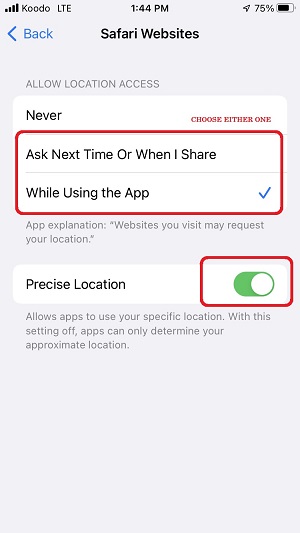
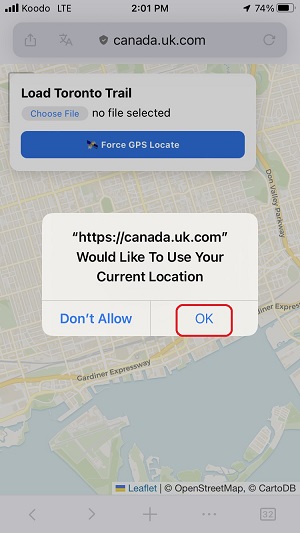
Privacy Settings on phone: Settings > Locations > Safari / Firefox etc > Ask to allow
|